Drop STL, 3MF, OBJ or .primed3d here or click to browse
Click a face on the model to orient it downward, or drag a slider to rotate around an axis.
Paint any colour onto a 3D model and export as a dithered multi-material 3MF for FDM printing — or as solid colours for normal multi-colour printing.
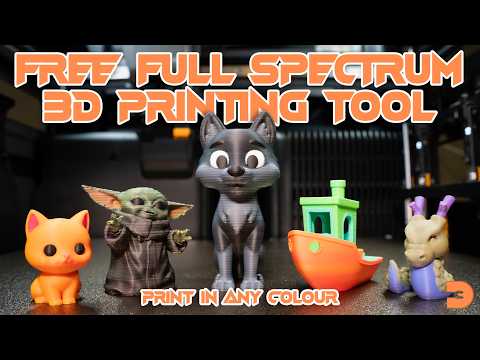
Standard mode
Standard mode is built around colour dithering: any RGB colour you paint is broken down into Cyan, Magenta, Yellow (and optionally White and Black) layer ratios, which dither together so that — at print time — the alternating filament lines optically blend into the colour you painted. With as few as 3 filaments you can hit any colour in the spectrum. The trade-off is that every painted face dithers, and the print needs specific layer-height settings to match the export.
Standard mode also has a second use: pick Solid Colours — No Dithering as the filament mode in the Process & Export section, and you can export with block colours (no dithering) for use with conventional multi-colour 3D printing. Each face prints as a single solid filament — no special slicer settings required, just match your AMS slots to the exported palette.
Custom Blend mode
Custom Blend mode lets you pick the exact filaments and colours you'll print with — up to 25 of them — and then paint using only those. Most painted faces print as a single solid filament with no dithering. Where you do want a colour that's between two (or three) of your filaments, you can blend them with a slider; that face dithers between the chosen filaments at the chosen ratio. You can also create gradients between any two of your filaments. It's the right choice when you have a specific filament palette in mind and want predictable, mostly-solid output with selective dithered blends.
Switching between modes clears all painting on the model. Pick the mode that matches your goal before you start painting.
Pick a mode above to view tools and tips for that workflow.
📐 Step 1 — Load & Orient
- Drag an STL, 3MF, or OBJ file onto the viewport, or click the upload area. For OBJ files with external textures or MTL materials, drop all related files together (e.g. .obj + .mtl + texture .png) in a single drag.
- Use the Orient button to click a face that should sit flat on the build plate.
- Use Scale to resize the model if needed. Apply photo projection before scaling for best results.
🎨 Step 2 — Paint
- Pick a colour from the colour picker.
- Use Brush, Sphere, Fill, Gradient, or Photo to paint your model.
- Ctrl+Z / Ctrl+Y to undo/redo. Set a Base Colour for unpainted faces.
⚙️ Step 3 — Process & Export
- Choose a Filament Mode — WKCMY gives the best colour range (5 filaments).
- Click Process to generate the 3MF.
- Click the Download button in the viewport.
🖨️ Step 4 — Slicer Settings (for dithered export)
Import into Bambu Studio or OrcaSlicer. Use these settings:
0.08 mm(or 0.06mm if exported at high quality)Assign filament slots to match your export mode (Cyan, Magenta, Yellow, White, Black).
Brush
Left-click and drag to paint visible faces. The BFS brush spreads along the surface within the radius, staying on the same surface (won't bleed around corners). Adjust radius with the slider.
Sphere Brush
Paints all faces within a 3D sphere radius, including through the model. Useful for painting hollow or complex geometry. Adjust radius with the slider.
Fill
Connected mode: flood-fills all connected faces of the same colour, expanding from the face you click outwards across shared edges. Angle Limit mode: fills faces within an angle threshold from the start face — great for painting a single flat surface that meets a sharp edge.
In Connected mode, the Colour Tolerance slider controls how strict the colour match needs to be. At 0% only faces with the exact same colour are filled — useful for painted hand-drawn boundaries. Higher values include similar shades, which is what you want when filling regions of a textured import or photo-projected mesh where every face has a slightly different shaded value. The same tolerance also applies in the Gradient and Photo tools' Fill sub-tools.
Base Colour
Sets the colour for all unpainted faces. "Reset all to base" clears all painting.
Whole Model mode
- Select gradient colours (From / To) using the colour swatches.
- Set Direction using the Rotation and Pitch sliders. The purple arrow in the viewport shows the direction.
- Use the Centre slider to shift where the mid-point of the gradient sits.
- Adjust Steps to control how many discrete colour bands the gradient uses.
- Click Apply Gradient.
Selection mode
- Switch to Selection mode in the gradient panel.
- Use the Brush or Fill sub-tool to select the faces you want to gradient. The Fill sub-tool uses the same Connected/Angle Limit modes and Colour Tolerance slider as the main Fill tool.
- Click on the model to set your Start point, then click again for the End point.
- Click Apply Gradient.
The gradient tool automatically switches back to the Brush tool after applying.
How to use
- Select the Photo tool from the tool panel.
- Click Load Photo and choose a JPG or PNG. Transparent PNG backgrounds are respected.
- Position, resize, and rotate the photo overlay in the viewport so it covers the area you want to paint.
- Choose Whole Model (paints all visible faces) or Selection mode (only selected faces).
- In Selection mode, use the Brush or Fill sub-tool to select the hull faces you want to paint first. The Fill sub-tool uses the same Connected/Angle Limit modes and the same Colour Tolerance slider as the main Fill tool.
- Click Apply. Filament mode auto-switches to WKCMY for best results with photos.
⚠️ Limitations
Curved surfaces work best. The photo tool maps colours onto individual triangles using a camera projection. On a model with many small triangles (like a curved hull), the result looks excellent. On a perfectly flat surface with very few triangles — like a basic cube face with only 2 triangles — the resolution is limited to a few samples per face.
Apply photo before scaling. If you scale the model after applying the photo, the per-layer export colours will fall back to the face average colour (still correct, but without the fine per-layer variation).
Use WKCMY. Photos contain neutral greys, whites, and blacks that CMY alone can't reproduce well. WKCMY uses white and black filaments to handle these tones accurately.
Bright, high-contrast photos print best. The dithering works on colour differences — a washed-out or grey photo will print as grey.
STL
Standard 3D printing format. Binary and ASCII both supported. STL files carry no colour data — you paint the model inside Primed3D. Use the Increase Resolution tool to give yourself a finer canvas for painting and photo projection.
3MF (import)
Imports geometry plus colour data from Bambu Studio paint assignments, base material colours, and per-filament colour groups. Pre-painted models from Bambu Studio import with their colours intact.
OBJ (import)
Imports geometry with colour data from these sources, in priority order:
- Vertex colours (
v x y z r g b) — used by 3D scanners (Polycam, RealityScan), AI model generators (Luma, Meshy), and point-cloud tools. Drop the .obj file alone. - UV texture map — used by photogrammetry tools and most 3D modelling software. Drop the .obj, .mtl, and texture image (.png / .jpg) all together in a single drag. Or just .obj + image — Primed3D will auto-create a default material if no .mtl is supplied.
- MTL solid diffuse colour (
Kd) — used by CAD and modelling tools. Drop the .obj and .mtl together. Each material's diffuse colour is assigned to the faces that use it.
For UV-textured imports, use Increase Resolution for sharper colour boundaries and finer detail in the dithered export, and Simplify Colours if the texture has baked-in lighting that produces stripey output. The View Mode toggle lets you preview how the texture will translate into per-face colours before processing.
3MF (export)
All export modes produce a .3mf file. See the Export Modes section for details on dithered vs solid output.
Save Project
The 💾 Save Project button under Process & Export writes a .primed3d file — a complete snapshot of your work: the model geometry, every painted face, your base colour, the active painting mode and filament setup, and your tool state. Use it to stop partway through a complex paint job and pick up exactly where you left off later.
Load Project
Drag a .primed3d file onto the viewport (or use the upload area) to restore everything. This is separate from importing an STL/3MF/OBJ — a .primed3d file reloads a saved Primed3D session rather than starting a fresh import.
Tip: a Solid Colours 3MF export can also be re-imported to continue editing (see Export Modes), but the .primed3d format is the lossless way to save and resume in-progress work — it preserves painting mode and tool state that a 3MF can't.
Increase Resolution
Splits each triangle into smaller children — Light gives you 4× the faces, Medium 16×, Aggressive 64×, Extreme 256×. Use it to:
- Sharpen colour boundaries on textured imports. Each child triangle re-samples the original texture at higher resolution, so a single large face that straddled a red/white boundary becomes many small faces, each cleanly on one side or the other.
- Pick up fine detail from textures — eyes, fur, fabric weave, lettering. Detail that would otherwise be averaged into one solid colour per face becomes visible in the export.
- Get a finer canvas for painting and photo projection on STLs and other low-poly models. Paint strokes and photo projections look smoother on a denser mesh.
Apply this before painting or scaling. Cannot be undone — to revert, reload the model. Pick the lightest level that gives the result you want; higher levels are slower to process and produce larger 3MF files.
Whole Model vs Selection. The "Apply To" toggle lets you pick. Whole Model subdivides everything. Selection lets you brush or fill an area on the model and subdivide only those faces — useful for adding density just where you need it (a face on a figurine, a logo on a body panel, a detailed corner of a larger flat mesh) without inflating the file size of the whole model. Selected faces show with an orange striped highlight. The selection persists if you switch to a paint tool — click "Selection" in this panel again to add to it.
About boundary stitching. When only part of the mesh is subdivided, the boundary between subdivided and unsubdivided regions would normally develop T-junctions — small mesh defects where one side of an edge has new midpoint vertices that the other doesn't. These cause cracks in render and can produce holes in printed layers. Primed3D handles this automatically by fan-splitting the unsubdivided faces along the boundary so they connect cleanly to the new vertices. You'll see the total face count is slightly higher than just (selection × factor) — the difference is the stitch triangles in this transition ring.
Simplify Colours
Reduces the model's colours to a chosen number using k-means clustering. Available when the imported file had its own colours (textured/vertex-coloured OBJ, painted 3MF) or after you've applied a photo projection.
Most useful for textures and photos with baked-in lighting and shading (AI scans, Blender bakes, photogrammetry, photo projections from real images). Without simplification, every face has a slightly different "shaded white" or "shaded red", and each one dithers to a slightly different filament mix — adjacent faces stack into visible horizontal stripes on the print. After simplification, all the similar shades collapse into a few clean cluster centres that dither identically.
Lower numbers give cleaner dithered prints. Try 4 or 8 for shaded scans; 16-32 for richer textures where you want more distinct colour regions; 64-128 if you really need to preserve the gradient nuance. Run before processing.
View Mode
Switches between two displays of the same model:
- Imported colours — for UV-textured OBJ imports, the smooth photo-like UV-mapped texture as it looked on import. For other coloured imports (vertex-coloured OBJ, painted 3MF) and STLs you've painted from scratch, the per-face colours from the source.
- Pre-process colours — what each face has been encoded as, ready for the dithered export. This is the actual source the export uses.
For UV-textured imports, the difference can be dramatic — the imported view is per-pixel smooth, the pre-process view shows the chunky per-face encoding that drives the dither. Use this to preview how the texture will translate into per-face encoding before processing. If the pre-process view looks too noisy or has bleed at colour boundaries, run Increase Resolution first, then Simplify Colours.
🧼 Colour Adjustments
An expandable section in Process & Export that groups three speckle-reducing tools, all aimed at the same problem from different angles: solid regions of the print should look uniform, but the dither algorithm — being statistically faithful — produces a spray of tiny mixed-filament noise even where the colour is meant to be flat. The cleaners suppress that noise. They only show up when the active filament mode includes White or Black (WCMY, KCMY, or WKCMY) since those are the filaments getting cleaned.
Clean white · Clean black
Each is an independent checkbox with a severity slider (Light / Standard / Aggressive). Clean white snaps light, low-saturation faces to pure white; Clean black does the same for dark, low-saturation faces toward pure black. Splitting them lets you tune each independently — useful when one side of the model has cleaner colour data than the other.
How severity works:
- Light — only faces that are already essentially pure get snapped. Safest; preserves intentional off-white tints and near-blacks.
- Standard — catches most baked-shading drift. Good default for textured imports and clean photo projections.
- Aggressive — catches even fairly tinted greys and light bleed at colour boundaries. Use this when neighbouring colours have leaked into the white/black regions of your model. Watch for over-snapping if you have intentionally peach-tinted whites or cool-tinted blacks.
Vivid colours
A separate checkbox in the same section. Targets the chromatic regions instead of the neutral ones — saturated reds, blues, greens, and so on. Available in every CMY-based dither mode (CMY, WCMY, KCMY, WKCMY). It does two things during export: where White or Black filaments exist, it scales their contribution down in proportion to how saturated the target colour is; and across all modes it drops trace filament demands below 5% by redistributing them to the dominant filaments. The result is cleaner solid-colour regions with less stray-filament speckle.
For plain CMY in particular, this removes the occasional magenta/cyan/yellow stripes that appear sparsely through otherwise solid-coloured regions — they're statistically faithful to the decomposition but visually jarring on the printed surface.
The trade-off: the K (black) filament is what gives saturated colours their depth. Removing it makes a deep red look pinker — mathematically the recipe is more "correct" but the eye reads "less rich". Use Vivid when speckle is the bigger problem than depth (busy textures, photo projections of bright objects). Skip it when depth matters more than absolute cleanness (deep saturated reds against black, dark moody scenes).
Dithered export (CMY / WCMY / KCMY / WKCMY / 2-Filament)
The model is sliced into thin layers (0.08mm or 0.06mm — your choice in the Process & Export panel) and each layer slice is assigned a filament (Cyan, Magenta, Yellow, White, Black). The alternating filament lines optically mix to produce your painted colours. Requires specific slicer settings — match the layer height you picked at export, and assign filaments in the correct order.
CMY — 3 filaments, best for vibrant colours with a white printer base.
WCMY — 4 filaments, adds white for cleaner pastels and highlights.
KCMY — 4 filaments, adds black for richer darks.
WKCMY — 5 filaments, best overall accuracy.
2 Filaments — dual nozzle, dithers between two chosen colours.
Solid Colours — No Dithering ✦
Exports each painted face as a solid flat colour. This is NOT the dithered colour-blending export — it's for use with normal multi-colour FDM printing. Use this if you want to paint your model and print it on a multi-filament printer (like a Bambu AMS) using standard solid filament colours, without any CMY dithering. No special slicer settings required.
The Palette Size option reduces all painted colours to a fixed number using colour clustering (k-means). Set this to match the number of filament slots in your slicer — e.g. choose 8 colours for an 8-slot AMS. Colours are automatically merged toward their nearest neighbours so the most visually distinct colours are preserved.
Re-importing into Primed3D: The Solid Colours export also works as a project save format. Export as Solid (Full Spectrum), then re-import the resulting .3mf into Primed3D to continue editing — all your painted colours are preserved on the faces and can be further refined with the brush, gradient, or photo tools before re-exporting as a dithered CMY version.
Filament Colours
The 🎨 Filament Colours section in the ⚙️ Settings popup lets you set the actual hex codes of your filaments. This only affects how the slicer preview displays — the dithering ratios themselves are always computed using ideal CMY theory regardless of your specific filament brand.
Which slicers work
The exported 3MF carries standard Bambu-style paint and colour-group data, so it imports into the common multi-material slicers. Confirmed working: Bambu Studio, OrcaSlicer (all its variants — Snapmaker, Flashforge, Creality, etc.), and PrusaSlicer. For dithered exports the only thing you must get right in any of them is the layer height — set it to match what you chose at export (0.08mm, or 0.06mm for high quality).
Compress Export File Size
In ⚙️ Settings. On by default. It shares geometry data between connected faces of the same colour, producing dramatically smaller 3MF files (often 90% smaller) with no loss of detail. Leave it on unless you have a specific reason not to — untick only for slightly faster processing when file size doesn't matter.
Auto-Repair Mesh On Export
In ⚙️ Settings. Off by default for faster exports, which is fine for the vast majority of models and slicers. When on, Primed3D seals every seam and T-junction the colour processing creates, producing a fully watertight, manifold mesh.
When to turn it on: if your slicer reports open or non-manifold edges, refuses to slice, or crashes loading a file — or any time you want a guaranteed-clean mesh (e.g. multi-material prints where a sealed model matters). It adds processing time proportional to the model's complexity, which is why it's opt-in rather than always-on. The setting is remembered across sessions.
Most source models export cleanly without repair. The feature exists for the occasional model — usually one with zero-thickness or degenerate geometry in the original file — where a slicer would otherwise complain.
📋 Step 1 — Set up your filament list
- In the Painting Mode section in the sidebar, switch from Standard to Custom Blend.
- Click each filament's swatch (or type a hex code) to set it to the actual colour you'll print with. Use + Add to add up to 25 filaments.
- Click Set as base on the filament you want unpainted faces to use. By default it's the first one.
🎨 Step 2 — Paint with solid filaments
- In Paint Colour, choose Solid sub-mode.
- Click a filament swatch in the grid — that's your brush colour.
- Use Brush, Sphere, or Fill to paint. Painted faces print as that single filament — no dithering.
🌈 Step 3 — Blend two or three filaments where needed
- Switch the Paint Colour panel to Blend sub-mode.
- Pick filaments for slots A and B, drag the weight sliders to choose the mix.
- Click + Add 3rd colour to blend three filaments at once.
- Paint with the brush. Blend-painted faces dither between the chosen filaments at the chosen ratio.
⚙️ Step 4 — Process & Export
- Click Process in Process & Export. The filament-mode dropdown isn't shown — Custom Blend has its own export pipeline.
- The exported 3MF carries your filament list as the colour group. Solid faces export as a single filament; blend faces dither across layers.
- In your slicer, assign the AMS slots in the same order as your filament list.
🖨️ Slicer Settings
Same layer-height rule as standard mode:
0.08 mm(or 0.06mm if exported at high quality)Match your filament list order in the AMS — the colour group in the 3MF will reference filament 1, 2, 3 etc. by index.
Adding filaments
Click + Add below the list to add a filament. You can have between 2 and 25 filaments — the 25 cap matches the maximum filament count of the Bambu Lab H2C with multiple AMS units.
Editing colours
Click a filament's swatch to open the colour picker — drag freely to fine-tune the colour without it closing on you. Or type a hex code directly into the input. Edits propagate live: the brush colour, base colour, and any solid-painted faces using that filament all update immediately.
Setting the base
The Set as base button on a row makes that filament the colour for unpainted faces. The base swatch is highlighted with the accent border. The "↺ Reset all to base" button at the bottom clears all painting back to that filament.
Removing filaments
Click × on a row to remove it. If the model has any faces painted with that filament solid, the removal is blocked — repaint those faces first. Recolouring a filament always works, regardless of how it's used.
Removing a filament that's only used inside blend or gradient targets is allowed — those faces store an RGB target, not a filament index, and the export will pick the next-best fit from the remaining filaments at process time.
Solid sub-mode
The simplest way to paint. Pick a filament from the swatch grid in the Paint Colour section — your Brush, Sphere Brush, and Fill tools paint with that single filament. Faces painted this way export as solid coloured triangles with no dithering: the cleanest possible output. Use this for the bulk of your painting whenever you can.
Blend sub-mode
For colours that fall between your filaments. Pick two (or three) filaments using the swatch rows for slots A, B, and optionally C. Each slot has a weight slider — the sliders are independent, so you can think in absolute amounts (e.g. "60% red, 30% white, 10% blue") and the blend RGB is the normalised weighted average. The result preview swatch shows the live colour the brush will paint with.
Faces painted with a blend store the target RGB, and at export time the pipeline finds the best 1-, 2-, or 3-filament combination to dither toward that target — so your blend brush isn't locked to exactly the filaments you picked, the export math finds whatever fits closest.
Brush, Sphere, and Fill
Identical behaviour to standard mode: Brush spreads along the surface, Sphere paints a 3D sphere through the model, Fill flood-fills connected faces (or uses Angle Limit mode). The only difference is what gets stamped — a filament index in Solid sub-mode, or a blend target in Blend sub-mode.
How it works in Custom Blend
The gradient panel's "From" and "To" colour pickers become filament selectors. Pick any two of your filaments — the gradient runs from "100% A" at one end to "100% B" at the other, dithering smoothly between them through the interior. The endpoints print as solid filament; only the in-between faces dither.
Whole Model mode
- Pick the From and To filaments from their swatch rows.
- Set Direction using Rotation and Pitch. The purple arrow shows the direction.
- Use the Centre slider to shift where the gradient mid-point sits.
- Adjust Steps to control how many discrete colour bands the gradient uses.
- Click Apply Gradient.
Selection mode
- Switch to Selection in the gradient panel.
- Use Brush or Fill to select the faces you want to gradient.
- Click on the model to set the Start point, then again for the End point.
- Click Apply Gradient.
Tip: at export time, faces along the gradient store filament-index values for the endpoints (no dither needed at the extremes) and blend targets for the interior. So endpoints stay perfectly solid, which keeps the gradient anchored.
The Photo tool is not yet available in Custom Blend mode. It's hidden from the toolbar when CB mode is active. We're planning to bring it back in a future update with a workflow that maps photo colours to your filament list at import time.
If you need photo projection right now, switch to Standard mode, apply the photo (which will warn that it clears any existing CB painting), then process. Or apply the photo first in Standard, export as Solid Colours, and re-import to use as a starting point for further CB work.
Custom Blend export pipeline
The standard filament-mode dropdown is hidden in CB mode — there's only one path: export against your filament list. The pipeline does two different things to two kinds of faces:
- Solid faces — every face you painted with the Solid sub-mode (or a gradient endpoint) is exported as a single triangle pointing at its filament index. No layer clipping, no dithering. As efficient as a normal multi-colour 3MF.
- Blend faces — every face you painted with the Blend sub-mode (or a gradient interior) is clipped across each print layer and assigned the best filament for that layer, building a dither pattern that approximates your target colour using 1, 2, or 3 of your filaments.
Layer Height
Same as Standard mode: 0.08mm is the default, 0.06mm is high quality. The layer height only affects blend faces (solid faces don't care). You must match this in your slicer so the dither bands line up correctly.
Filament order in the slicer
The exported 3MF includes a colour group listing your filaments in the order they appear in your list. In Bambu Studio, OrcaSlicer, or PrusaSlicer, assign your AMS slots in the same order — filament 1 of your list goes to slot 1 in the slicer, and so on.
Export settings (Compress & Auto-Repair)
Both settings in the ⚙️ Settings popup apply to Custom Blend exports too. Compress (on by default) shrinks the file with no loss of detail. Auto-Repair Mesh On Export (off by default) seals the mesh into a watertight, manifold model — turn it on if your slicer flags open or non-manifold edges, or whenever you want a guaranteed-clean mesh. Both are remembered across sessions.
All file imports work the same in CB mode. STLs come in as plain geometry; 3MFs and OBJs with colour data come in painted. Imported colours are placed onto the faces as solid (whatever the imported colour was) — Custom Blend doesn't pre-decide which of your filaments those colours map to, it just records the RGB. Use the Eyedropper to read back any face's colour and snap it to the closest filament fit, or repaint specific regions with your filament list.
The .primed3d save format round-trips Custom Blend mode fully — your filament list, base index, brush state, and per-face render intent (solid filament index or blend target) all persist across save/load.
Subdivide for finer painting
Same tool as Standard mode — splits each triangle into 4, 16, 64, or 256 children for sharper colour boundaries. In CB mode each child inherits its parent's render intent, so subdividing a region painted with a blend keeps that blend on every child face.
Apply this before painting fine details for the cleanest result. Cannot be undone — to revert, reload the model.
Whole Model vs Selection
Subdivide the whole model, or just a brushed/filled selection. Selection-only is the right call when you only need fine resolution in one area — subdividing the whole model can balloon the file size unnecessarily.
A 3D Revolution Tool

Terms of Use
About Primed3D
Primed3D is a free, open-source tool created and shared with the 3D printing community by Josh at 3D Revolution. It is provided as-is, free of charge, for personal and commercial use.
Your Privacy & Data
Everything happens in your browser. Primed3D runs entirely client-side — your STL files, painted models, and exported 3MF files are never uploaded to any server. No data leaves your device at any point. There are no accounts, no tracking, and no analytics. Your files stay yours.
Open Source
Primed3D is released as an open-source project. You are free to use, modify, and share it. If you redistribute or build upon it, please credit the original project and its creator.
No Warranty
This tool is provided without warranty of any kind, express or implied. The creator is not liable for any damages or issues arising from its use, including but not limited to failed prints, material waste, or printer issues. Use at your own discretion.
3D Printing Results
Print quality depends on many factors outside the control of this tool, including your printer, filament, slicer settings, and model geometry. The colour dithering is an approximation — results will vary between setups. The recommended slicer settings are a starting point, not a guarantee.
Third-Party Services
Primed3D itself does not connect to any external services. Optional links to YouTube and Buy Me a Coffee are provided for convenience and open in new tabs — they are governed by their own terms and privacy policies.
Primed3D — A 3D Revolution Tool
Thanks for using Primed3D! 🎉
I hope you found it useful! Primed3D was created by Josh at 3D Revolution.
▶ Subscribe to 3D Revolution for tips, tutorials, and more tools.
If you'd like to say thanks or support the project, the best way is to support me via Patreon, or if you'd prefer become a YouTube channel member — alternatively, you can buy me a coffee ☕